Espanso. A new way to type
Changing your way of typing with macros and automations.
Have you ever heard of espanso? It's a tool I've been using for a while and it's very useful for automating simple things while typing, like filling in a date or an ID number.
Installation
To really get started, we need to install espanso. Just go to the download page and select your operating system. After installation, open the terminal and type the command
espanso status
If everything is correct you'll see the message espanso is running. When opening the program, you'll see a small tutorial and it will ask you to type :espanso. This will result in replacing :espanso with Hi there.
Can you already imagine what you can do with substitutions? Let's continue so you can see the real potential of espanso.
Configuration
Before writing our configurations, we need to know where the espanso configuration files are. To do this, just follow the commands:
espanso path
3 lines will appear, Config, Packages and Runtime. We're interested in the directory shown in Config. Let's open this directory in our favorite text editor neovim.
cd "$(espanso path config)"
code # Using vscode to be more familiar
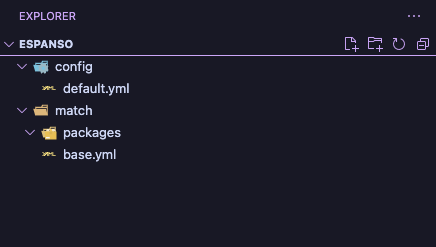 Espanso directory
In this directory we have some .yml files. The main one for our configuration is the base.yml file, where all the substitution rules will be.
A very important tip for your configuration is to have a prefix for espanso triggers. Configurations and packages typically use : as the trigger prefix, but to avoid conflicts with Slack, Notion, and similar applications, ; is a better choice. This will also avoid having to press Shift + ; to get a :.
Substitutions
Now that we know the file we need to edit, let's look at the substitutions that espanso can do. We'll see each type of substitution that espanso offers.
The blocks presented will be added in the base.yml file, inside the matches property, being a YAML format array.
Static substitution
This is the simplest of all, but it's still important. You know that message or value you keep typing or save in some file to copy and paste? Now it can become an espanso macro to help you with this.
- trigger: ;email
  replace: myemail@email.com
- trigger: ;ssn
  replace: 123-45-6789 # Fake SSN generated by my espanso :D
Static substitutions are very useful for non-interactive cases, where you just need to transcribe the text to where you're typing. They can be useful for filling common forms with email, ID, phone, full name...the sky is the limit.
Particularly, besides those mentioned, I use it to fill in social network links, like my youtube channel, linkedin, twitter/x, emojis and similar.
Dynamic substitution
By default espanso provides some directives to replace values and create practical functionalities like, for example, dates:
- trigger: ;now
  replace: {{time}}
  vars:
    - name: time
	type: date
	params:
	  format: "%H:%M"
In this case we have the creation of the current time, based on chrono tokens, a Rust lib for dates. You can also use parameters like offset and configure more logical triggers, like getting yesterday's or tomorrow's date.
Still in dynamic extensions, we have the random option. This option has a very obvious behavior, given a list of options, it will return one of them randomly. I usually use this option for ZIP codes, since there's no way to generate a valid zip code number, so I create a list with valid and known zip codes to use in autocomplete.
  - label: "Random ZIP"
    replace: '{{zip}}'
    trigger: ;zip
    vars:
      - name: zip
        type: random
        params:
          choices:
            - 10001
            - 90210
            - 33101
            - 60601
            - 98101
            - 02101
            - 85001
            - 30301
With this, you'll randomly have a functional zip code whenever you type ;zip.
In this Dynamic Substitution topic we saw espanso's match-extensions, and we also saw how we can have variables, through the syntax {{VARIABLE_NAME}} and how to assign labels to our triggers, with the - label: property.
Integrating your scripts
One of espanso's great powers is being able to execute shell commands when triggers are typed. This brings great power to your workflow, being able to simply program the results generated dynamically. And when we say shell commands, this is not limited only to bash/zsh/fish, but any command you have installed on your system. Simply put, you can create a program in deno and its output will be your autocomplete.
But let's take it easy, first analyzing the example shown in the official documentation
  - trigger: ":ip"
    replace: "{{output}}"
    vars:
      - name: output
        type: shell
        params:
          cmd: "curl 'https://api.ipify.org'"
Simple and effective. Using curl to make a GET on ipify.org and get your external IP.
It's important to remember that execution may vary between operating systems, but keeping the standard you shouldn't encounter problems.
Since we know we can execute shell commands, let's explore some possibilities.
ID Generator
It's very common for developers to use various online tools to generate test IDs and documents. And the process for this involves:
- Open the browser
- Type the URL
- Navigate to the option
- Click to generate
For those who are already used to it, it can be a common process. But you don't need this anymore. Now you can simply type ;uuid and that's it... you have your valid UUID right where you were typing, without having to leave.
As said before, we can create programs in any languages and execute to get the result. To make the article easier, let's use a simple UUID generator:
  - trigger: ";uuid"
    replace: "{{uuid}}"
    vars:
      - name: uuid
        type: shell
        params:
          cmd: "node -e 'console.log(require(\"node:crypto\").randomUUID())'"
From here, the sky is the limit for you. You can transform any tasks into an espanso flow. Several colleagues who have been introduced to this tool are now using it to create email templates, fill in forms automatically, and generate IDs.
Conclusion
I've been using espanso for a little over 1 and a half years and I have nothing to say, it greatly improved my way of working with forms, writing emails, filling data, creating SQL queries, code snippets and much more. You can see all these automations in my espanso configuration file.
The only downside is writing YAML, which is a format I particularly don't like. And that's why my configuration is made in Typescript + Deno, which avoids having to deal with spacing and indentation problems. But if you want the configuration in YAML, just look at the gist.
Thank you for your time, see you soon, bye bye